Help
The Admin Chat screen lets you test your Airgentic service interactively, exactly as a real user would experience it — but without any of the consequences of live traffic.
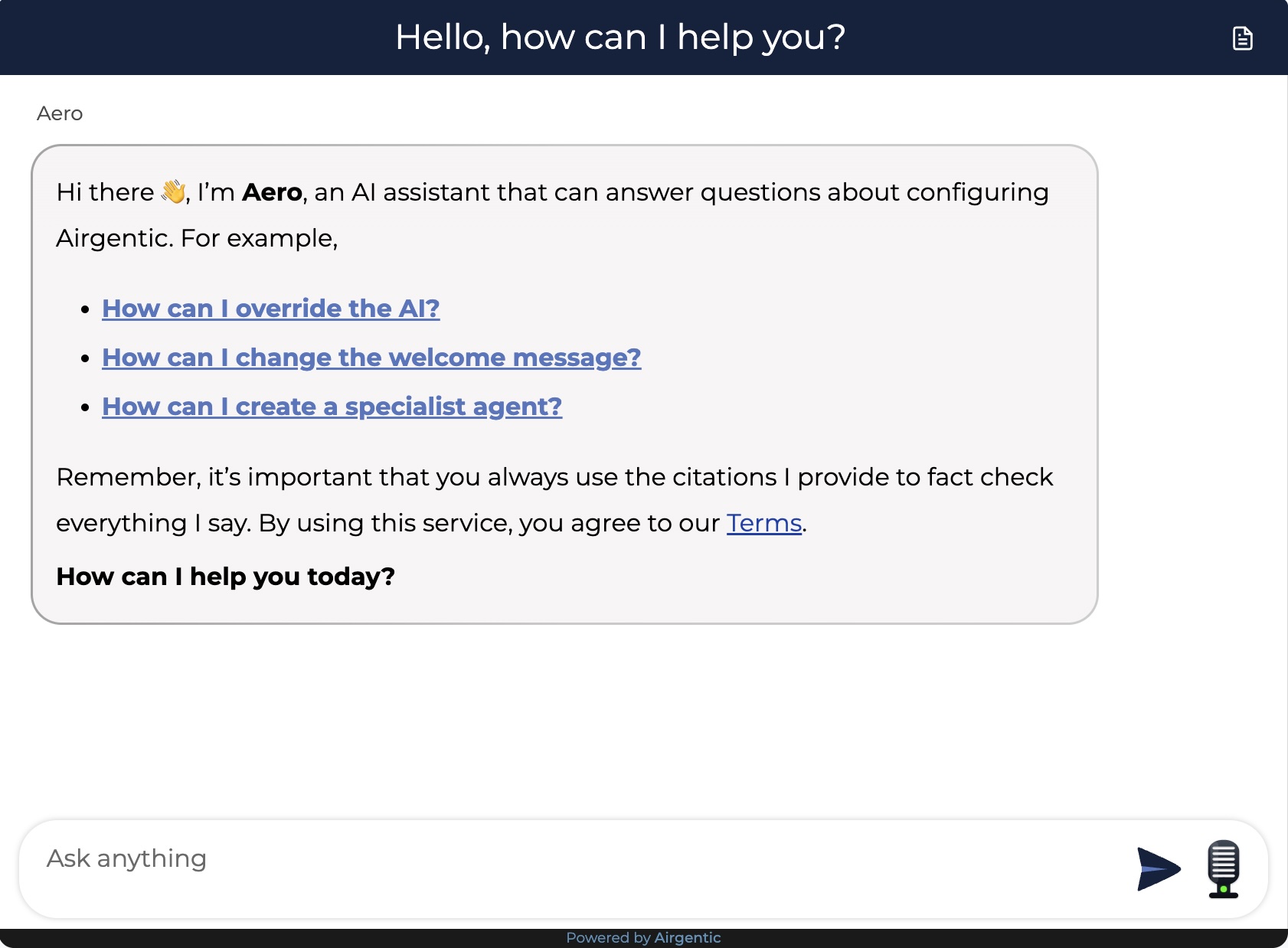
Why Use Admin Chat?
- No analytics impact — Conversations in Admin Chat do not appear in the Insights or Search Insights dashboards.
- No quota consumption — Interactions do not count toward your plan's usage limits.
- Testing only agents — Agents with a status of Testing are available in Admin Chat but not visible to end users. This lets you verify an agent's behaviour before making it live.
Use Admin Chat whenever you want to test a prompt change, verify agent routing, check search results, or reproduce a customer issue.
Fullscreen Mode
Click the Fullscreen button (top right of the page) to expand the chat widget to fill the entire screen — useful for a more realistic test experience or for screen-sharing.
- Press F to toggle fullscreen on/off.
- Press Escape to exit fullscreen.
Trace Log
The trace log is the most powerful feature of Admin Chat. It gives complete transparency into how every message is processed — from the initial routing decision through to the final response.
To open the trace log: Click the document icon (top right corner of the chat widget), or press the backtick key (`) while in fullscreen mode.
What the Trace Log Shows
The trace log groups processing steps into sections, displayed in chronological order with precise timestamps:
Agent Delegation
Shows how the Frontline agent decided which specialist agent (if any) to delegate the question to:
- LLM payload — The full system prompt sent to the routing model, including the role descriptions of all available agents.
- LLM response — The model's routing decision (e.g.
agent=tech_support). - Agent delegation — Which agent was selected and why.
Expert Agent
Shows what happened once the specialist agent (or Frontline, if no delegation) processed the question:
- LLM payload — The full system prompt for the selected agent, including any prompt substitutions that were resolved.
- LLM response — The model's raw response, including any function calls it decided to make (e.g.
Call Function: search_info).
Get Relevant Information
Shows the search step — how the system retrieved content to ground the agent's answer:
- Standalone question — The search query derived from the conversation (the question as rephrased for standalone retrieval).
- Search results — The list of indexed pages returned by the search engine, with their URLs and relevance scores. Each result can be expanded to see the full content snippet.
Other Steps
Depending on the question and configuration, additional steps may appear:
- Playbook match — Which playbook layers are active (or that none matched). Useful when testing campaign URLs, country rules, or agent pins.
- Function call results
- Moderation checks
- Voice processing steps (if voice mode is enabled)
Using the Trace Log for Debugging
The trace log is invaluable for diagnosing issues:
| Problem | What to look for |
|---|---|
| Wrong agent handling the question | Check Agent Delegation — is the role description precise enough to route correctly? If a playbook or data-agent-id pin is set, Frontline will not choose. |
| Unexpected campaign or country behaviour | Check Playbook match — did the intended layers fire, and did a sticky campaign layer remain after the UTM dropped off? |
| Agent giving a bad answer | Check Expert Agent LLM payload — are the right prompts and substitutions being used? |
| Missing or irrelevant search results | Check Get Relevant Information — is the standalone question accurate? Are the right URLs appearing? |
| Answer not matching a specific page | Check search results — is the page indexed and ranking highly enough? |
Diagnose with the agent
If a test conversation goes wrong and you would rather not read the trace yourself, press Diagnose (the stethoscope button next to the fullscreen toggle). It becomes available once the assistant has replied at least once — including when it shows an error such as “unable to answer questions” — and hands the conversation to the Configuration Agent. The agent starts straight away: it reads the trace of the conversation in the chat window on this page (only that one, never live visitor conversations), recaps what you asked and how the assistant answered each time, explains why it answered that way (which agent handled it, what it searched for and found, any function it called), and gives its verdict. If something went wrong it names the stage responsible (routing, search, an instruction in the prompt, the reply ignoring what was found, tone or format, a function call), records the cause on its Diagnostics tab and proposes the smallest change. If the assistant seems to have behaved reasonably it says so and asks what you expected instead; type that, and it diagnoses against it. It can preview the edited prompt and replay your question with and without the change so you can compare the answers before anything is applied.
Test conversations from Admin Chat are always traced, even for services that have not turned on conversation trace logging, and they never appear in Insights. The button only shows when the Configuration Agent is enabled for your account.