Help
Human Handoff
The Human Handoff screen is a contact-centre inbox: you can hold several assigned chats at once, switch between them without notifying the customer, transfer a chat to a colleague, and find recently closed conversations for 48 hours.
The desk is a three-column workspace. The inbox is on the left, the conversation is in the centre, and the Summary, Tags and Visitor cards sit on the right. Modes, hours, wait-time colours, and saved replies are configured under Desk settings. Blocked visitors are listed under Blocked visitors, next to Desk settings.
The screen maintains a live connection to the conversation server and updates automatically — you don't need to refresh the page.
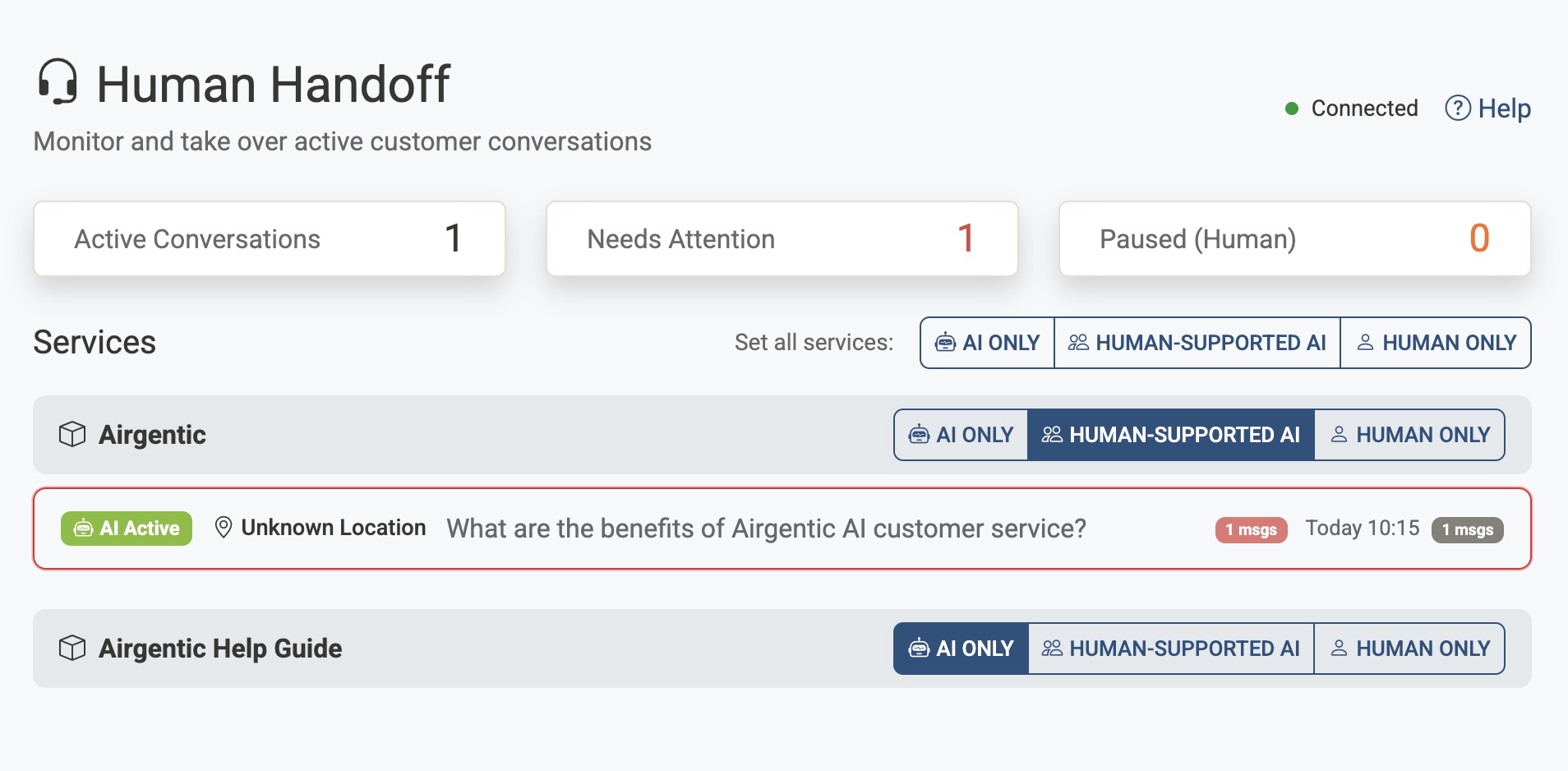
Connection and availability
A status indicator in the top-right shows whether the live connection to the server is active:
- Green dot — Connected — Receiving live conversation updates.
- Yellow dot — Connecting — Attempting to establish a connection.
- Red dot — Disconnected — The connection has been lost. The page will attempt to reconnect automatically.
Next to it, Available / Away controls whether you are in the auto-assign pool. Click the agent count to see who is currently available (and who is on the page but Away).
A bell icon turns browser notifications on or off. See Notifications.
Conversation inbox
The left column has two tabs:
| Tab | What it holds |
|---|---|
| Live | Conversations that are still open, grouped into My chats, Queued, and Monitoring. |
| Recent | Closed conversations, including threads a visitor reset. Shows the last 48 hours by default; use the drop-down above the list to look back a week, two weeks or a month. Read-only. |
When any conversation needs a person, a red need attention banner appears above the inbox. The same count appears on the browser tab (for example (3) Human Handoff) so you can see it even when the tab is in the background.
Live buckets
| Bucket | What it holds |
|---|---|
| My chats | Conversations assigned to you. You can keep several at once and switch rows without releasing or notifying the customer. |
| Queued | Unclaimed conversations that need a human now: the customer asked for help, the AI flagged a thumbs-down / non-answer / negative sentiment, the service is in Human Only, or a paused chat was returned to the queue. |
| Monitoring | Live chats the AI is still answering. A new Human-Supported conversation starts here. Take over if you want to step in before it escalates. |
Selecting a row opens the transcript. It does not claim or release the conversation. The customer is not notified when you switch chats.
Conversation cards
Each card shows a small service chip plus:
- Opening question — A preview of the first thing the customer asked.
- Location — The customer's detected city and region.
- Time — When the conversation started.
- Message count — The total number of messages exchanged.
- Tags — Compact chips for the conversation's tags, whether the AI or an agent added them.
- Wait time — On queued chats (and on your chats with an unread customer message), how long the customer has been waiting for a person.
Wait-time colours
Queued conversations turn amber, then red, as the customer waits for someone to take over. The wait is measured from the customer's last message. The queued bucket count uses the same colours when any chat in that list has gone red.
Admins set those times per service in Desk settings. The defaults are 2 minutes (amber) and 5 minutes (red).
Search, filter, and sort
Above the inbox:
- Search chats — Finds conversations by question, visitor name, location, service, or tag. Type a few words; the list updates as you type.
- Filter — Narrow the list by service (on accounts with more than one), by tag, to Needs attention only, or to Answered by a human (conversations where a team member sent at least one message). The filter button shows how many filters are on.
- Sort — Toggle between Longest waiting (the default — oldest waiting chats first in My chats and Queued) and Newest.
Hidden chats stay counted in the need attention banner and the browser-tab badge, so a filtered-out escalation is never silently lost. A line under the toolbar tells you how many chats are hidden; Clear restores the full list. Your search, filters, and sort are remembered in this browser.
Keyboard: with an inbox card focused, Up / Down move between visible cards and Enter or Space opens the conversation. Hidden cards are skipped.
Attention flags
Conversations that need human review are highlighted and display a coloured badge:
| Badge | Trigger |
|---|---|
| Thumbs Down | The customer gave a thumbs-down rating after an AI response. |
| Non-Answer | The AI was unable to answer the customer's question. |
| Negative Feedback | Negative sentiment was detected in the conversation. |
| Help Requested | The customer explicitly requested to speak to a human. |
These conversations also increment the need attention count.
Working a conversation
Click any conversation card to open it in the centre of the desk.
Share a link to a conversation
The browser's address bar follows the open conversation, so each one has its own link. To share it, click the link icon next to the visitor's name. This copies the link, and you can paste it into a chat or email. A colleague who opens it lands on Human Handoff with that conversation open. If they aren't signed in, they're asked to sign in first. Links only work for people in the same account.
If the conversation is older than the Recent window, the window widens automatically to include it. Once a closed conversation has left Human Handoff altogether, the link shows an Open in Insights button. That button opens the conversation on the Insights Conversations tab, for anyone who can see that service.
Transcript
Messages are colour-coded by who sent them:
- Customer — White bubble on the left.
- AI Assistant — Soft teal, on the right.
- You / another agent — Navy wash, on the right, labelled with the agent's name.
- System — Centred, italic (for example the notice that a person has joined).
- Internal note — Amber, full width, with a lock. Only agents can see these. See Internal notes.
Each message shows a clock when the time is known (10:22, or Yesterday 16:42 for older turns). When a conversation spans more than one day, a Today / Yesterday / date divider appears between groups of messages. Conversations that started before times were stored simply have no clock on the older turns.
Recent cards are read-only: no composer, Take over, or transfer. You can still email the transcript.
Email a transcript
Email in the conversation header sends the transcript to up to five addresses. It works on a live chat, whether or not you have taken over, and on Recent conversations.
The dialog asks for:
- To — one address per line, or several separated by commas.
- Message — optional. It appears above the transcript.
- Send me a copy — on by default. Adds you as a copy recipient.
- Include the summary and Include the visitor profile — both on by default. The browser remembers these, and the copy and notes choices, on this computer.
- Include internal notes — off by default. Notes stay on the desk unless you tick this.
The email comes from your organisation via Airgentic at no-reply@airgentic.com. A reply goes to you, not to that address. Tool calls and other internal steps are left out. After a live conversation is emailed, the desk adds an internal note recording who it was sent to.
Summary and visitor
When you take over, a Summary card on the right gives one or two sentences so you can get oriented without reading every turn. If the service captures a visitor profile, a Visitor card shows known details (name, programme interest, campus, and so on), plus approximate location, timezone, and language. Structured fields update as the conversation continues; the short bullet snapshot is from when you opened the conversation.
See Visitor Profiles.
Taking over
Click Take over to claim the conversation and pause the AI. In Human-Supported AI the customer sees a notice that a person has joined; in Human Only they do not (they already have a holding notice). Once you have taken over:
- The composer opens under the transcript.
- Generate, revise, insert a saved reply, or type a reply, then click Send (or press Enter).
- Use Shift + Enter for a new line.
- If another agent has already claimed the conversation, Take over shows their name and is disabled.
Writing a reply
The composer sits under the transcript, with a large text area and a toolbar:
| Control | What it does |
|---|---|
| Edit / Preview | Preview shows the reply the way the customer will see it, including markdown links and lists. |
| Generate | Drafts the same answer the AI would have given, without sending it. Ctrl/Cmd+Shift+G does the same. Click again while it is generating to cancel. |
| Clear | Empties the draft. |
| Replies | Inserts a saved reply. |
| Note | Switches the composer to an internal note. |
| Add tag | Adds conversation tags. |
| Send | Sends the reply as you. |
If the customer sends another message while you have a draft, a banner asks you to regenerate. The draft is not overwritten automatically.
Generating an AI answer counts toward your subscription quota, even if you edit or discard the draft. Replies you type yourself are not billed. Citations stay in a Sources list under the composer and are not shown in the widget.
Saved replies
Ready-made answers for common questions. After you have claimed a chat:
- Click Replies and pick one, or type
/in an empty composer to open the picker. - Search the list if you have many replies.
- Placeholders are filled in when you insert:
{visitor_name},{agent_name}, and{service_name}.
Admins add and edit the list under Desk settings.
Internal notes
Notes are for your team only. The customer, the AI, and Insights never see them.
- Claim the conversation, then click Note. The composer turns amber.
- Type the note and press Enter (or Send). Escape cancels note mode.
- The note appears in the transcript as an amber, locked message with your name.
Use notes for things like a ticket number, a warning for the next agent, or context you would not put in a customer-facing reply.
Conversation tags
Tags belong to the whole conversation (not each thread) and stay on Insights after the session ends.
- The Tags card, between Summary and Visitor, shows the conversation's tags whether the AI or an agent is handling it. A robot icon means the AI added the tag, and a person icon means an agent did. Hover over a tag to see who added it, when, the AI's reason, and the tag's description.
- Click Add tag in the composer (or Add on the Tags card), then a suggested tag from the service palette. Hover over a tag to see when to use it.
- To find a tag, start typing. The list filters on tag names and descriptions, and Enter adds the highlighted tag. When nothing matches, Enter adds what you typed as a custom tag.
- To remove a tag, click its × on the Tags card.
- Matching a palette name (or its id) stores the standard tag, so reporting stays clean.
- Only the claimed agent can add or remove tags. Everyone can see the tags on the conversation list and the Tags card.
- Custom tags cannot contain a semicolon. Up to 12 tags, 40 characters each.
Every tag change also appears in the transcript as a short line, for example "AI Assistant added a tag UG · 2:56 PM" or "Kalvin removed a tag Other". These lines are for your team only: the customer, the AI, emailed transcripts and Insights never see them.
Admins set up the suggested tags, their groups, colours and descriptions on Configuration & Design → Conversation tags (see Conversation tags). On the desk, admins also see Manage tags at the bottom of the tag menu, which opens that screen for the conversation's service. Custom tags still work when there are no suggested tags.
AI tagging
With Let the AI tag conversations turned on (on the Conversation tags screen), the AI tags conversations from the suggested tags while the visitor is talking to the assistant, so chats that never reach an agent are tagged too. It:
- Uses only suggested tags, and skips tags with AI can apply turned off. Give each tag a description so it is clear when it applies, especially for short names like
UGorRPL. - Adds tags and never removes them. A tag an agent removes is not added back in that conversation.
- Runs after each visitor message, in the background, so replies are not slowed down.
- Stops while an agent has claimed the conversation; the agent decides the tags.
- Gives a short reason for each tag. In the transcript, the line for a tag the AI added sits just after the visitor message that met the tag's criteria. Hover over the tag to read the reason. Use this to check the tag descriptions are working as you expect.
When visitor-profile CRM sync is on, the same tags are written to HubSpot (airgentic_conversation_tags) and Marketo (airgenticConversationTags) automatically. Removing every chip clears that field. See Visitor Profiles and CRM.
Hand back, transfer, and return to queue
Once a human has stepped in, the AI stays paused until you explicitly Hand back to AI. Parked My chats, chats returned to Queued, and a customer reconnecting do not unpause the bot.
| Action | When | What the customer sees |
|---|---|---|
| Take over | Queued / unclaimed | In Human-Supported AI, a one-time “A human agent is stepping in…” notice. Nothing in Human Only. |
| Hand back to AI | Mine, Human-Supported AI (two-click confirm) | Existing resume copy. The AI answers the next message. |
| Transfer | Mine | One line naming the colleague, for example “Archie is now helping you.” |
| Return to queue | Mine | Nothing. The chat stays paused and waits in Queued (or auto-assigns to someone with capacity). |
Switching rows, closing the workspace, auto-assign while you are working another chat, and idle time never send a customer message.
Block a visitor
Use Block in the conversation header when a visitor is abusive or keeps wasting agents' time. Any agent can block, without taking over first. Only an admin can lift a block.
The dialog asks for:
- What the block does:
- No human handoff. The AI keeps answering, but the visitor can no longer reach an agent. If they ask for a person, the assistant says nobody is available. Their chats stop appearing in Queued, and if an agent had the chat, it goes back to the AI with a short notice.
- Block chat entirely. The chat ends straight away. From then on the visitor sees a short "This chat is no longer available" message instead of answers. Airgentic can change that wording for your service.
- How long: 24 hours, 7, 30 or 90 days, or until an admin unblocks.
- Their network (IP address). Optional, and never longer than 24 hours. Campus Wi-Fi, offices and mobile networks share addresses, so this can block other people too. Use it only when the visitor keeps coming back in new chats.
- Reason. Required. Other agents and admins see it; the visitor never does.
What the block covers depends on what the site tells Airgentic about the visitor. It always covers the current conversation. When the service is set up to identify returning visitors with a user ID cookie, it also covers new chats from the same browser. The dialog says which applies. Clearing cookies or switching device gets around a browser block, which is what the network option is for.
A blocked conversation shows a red Blocked or No handoff pill next to the visitor's name. On a service where the AI is switched off (Human Only), No human handoff would leave the visitor with nobody to talk to, so it acts as a full block.
Blocked visitors, at the top of the desk, lists every block: who was blocked, what the block covers, the reason, who blocked them and when, when it ends, and how many times the visitor has tried to chat since. View conversation opens the conversation the block came from. Admins see Unblock, which takes effect on the visitor's next message. Turn on Show expired and lifted to see past blocks.
Airgentic does not store the visitor's identifiers in the block list, only one-way fingerprints of them, so a block cannot be used to look up who someone is.
Notifications
You do not have to stare at the inbox:
- Sound plays when a conversation needs attention.
- Toast appears at the bottom-right, even if you are on a different page in the admin console.
- Browser tab shows a count, for example
(3) Human Handoff, whenever chats need attention. - Desktop notifications (the bell in the top-right) can alert you when the tab is in the background. The browser will ask permission the first time you turn them on.
Auto-assign still requires the Human Handoff page to be open with Available on. Toasts and desktop notifications tell you something needs attention; they do not put you in the assignment pool.
Related documentation
- Desk settings — Modes, hours, auto-assign, wait-time colours, and saved replies
- User Management — Assign the Agent role for live-support staff
- Visitor Profiles — Structured details shown on the conversation
- Visitor Profiles and CRM — Send profile fields and tags to HubSpot or Marketo
- Playbooks — Per-session hours overlay vs the service-wide Hours control
- Customer Service Insights — Review tagged conversations after the session ends
- Handoff and Escalation — Planning live vs async escalation