Help
The Agent Messages tab of Service Configuration controls the messages and prompts the AI agent displays to users throughout a conversation. All message fields support HTML formatting.
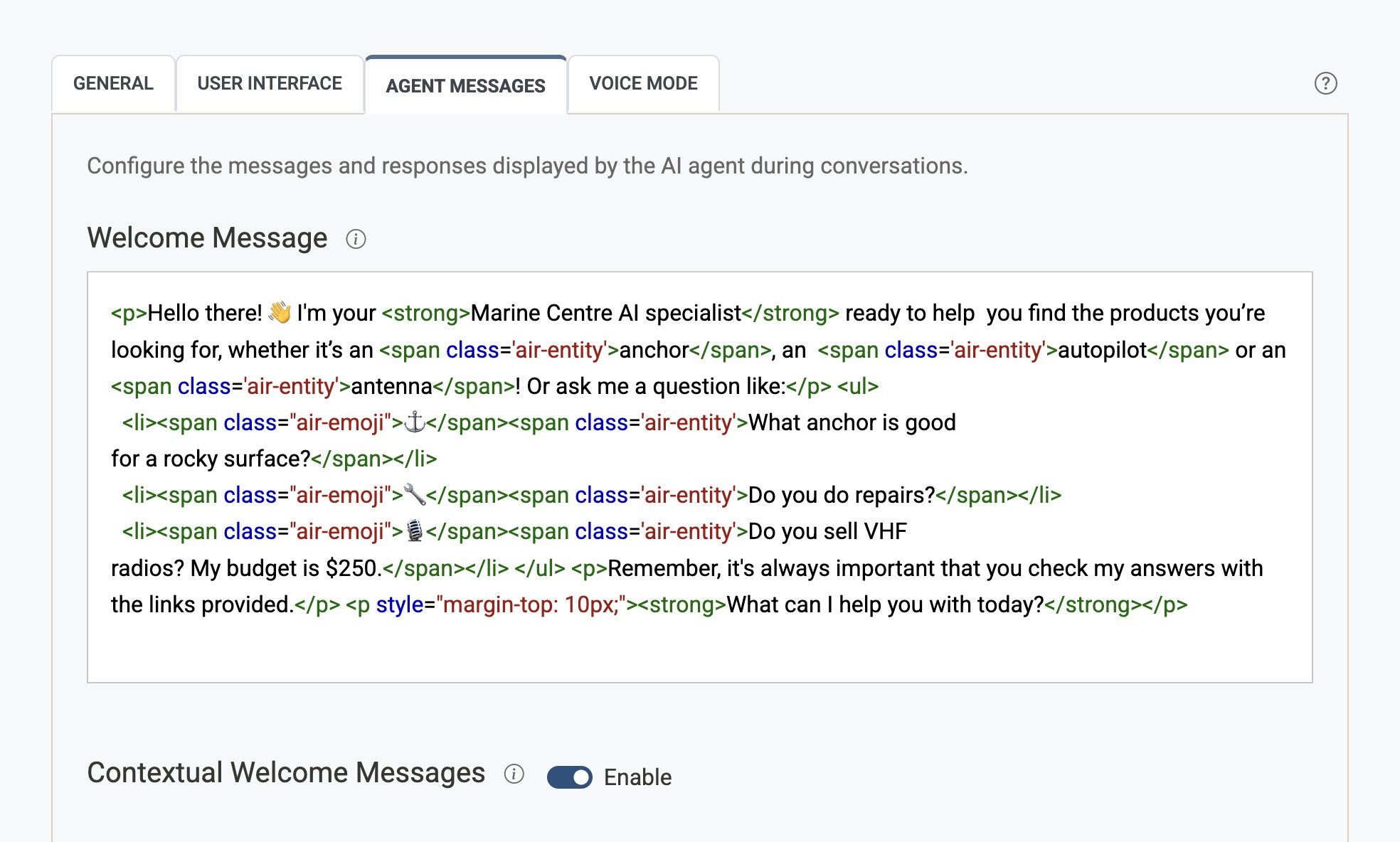
Welcome Message
The opening message shown to users when they first open the chat widget. Use it to greet visitors, set expectations, or point them toward common topics.
- Supports HTML, so you can include links, bold text, bullet lists, etc.
- Example:
Hi! I'm here to help. Ask me anything about our products and services.
When Contextual Welcome Messages (below) is enabled, this message is shown on your home page only, and a Page field appears above the editor so you can view and edit the greeting used on any other page.
Editing the welcome for a specific page
- Paste the page's URL into the Page field and press Enter (or click away). The status line under the field shows the page title and the address it was matched to.
- The editor shows the greeting currently used on that page. If the AI has not generated one yet, the editor is empty — write your own or leave it blank and the AI will generate one the first time a visitor opens the chat there.
- Edit the text and click Save Configuration. Your greeting replaces the AI-generated one for that page and is not regenerated.
- To return to the home page welcome, clear the field (the × button) — the placeholder reads Home page.
Notes:
- Greetings are stored per page address. Two pages with the same title have separate greetings, and editing one page never changes another.
- Small address differences are matched for you:
http/https, a trailing slash, and anything after#are ignored. - Your home page address behaves the same as an empty field.
- If the page is not in your search index (for example it has not been crawled yet, or the address is wrong) you will see a warning and the editor is read-only. Check the address, or re-run the crawl, and try again.
- Saving an empty editor for a page removes your saved greeting; the AI will generate a fresh one on the next visit.
- Unsaved edits are kept while you switch between pages, and Save Configuration writes both the home welcome and any page greetings you changed.
Clickable example questions
Wrap any text in double curly braces to turn it into a clickable suggestion. When a visitor clicks it, that question is asked for them.
<ul>
  <li>{{Can I create voice agents?}}</li>
  <li>{{What are your opening hours?}}</li>
</ul>
Icons on suggestion chips
To show an icon beside a suggestion, put an icon name and a pipe (|) in front of the question:
<p>For example,</p>
<ul>
  <li>{{icon:people|Can the agents put leads directly into HubSpot?}}</li>
  <li>{{icon:mic|Can I create voice agents?}}</li>
  <li>{{icon:sliders|How do I use Airgentic's human override?}}</li>
  <li>{{icon:headset|Can the agents do human handoff?}}</li>
</ul>
- Icon names come from Bootstrap Icons — use the kebab-case name shown on that site, such as
mic,people,sliders,headset, orgeo-alt. You do not upload SVG files for these; Airgentic hosts the set globally. - Icons are tinted to match your theme automatically — pick the shape and leave the colour to your UI Design stylesheet. Set
--air-chip-icon-colorinstyle.cssto give icons a distinct accent colour. - If a name is misspelt or does not exist, the suggestion still appears without an icon.
- Only the first
|separates the icon from the question, so the question text itself may contain pipes.
See UI Design → Welcome suggestion chips for styling chips and icons with CSS.
Human Only Welcome Message
Optional second greeting used whenever the visitor is in Human Only — either because Desk settings is Human Only, or because Hover Widget Mode is Human Only and the desk is staffed.
- Leave this blank to keep the regular welcome message.
- Contextual welcome messages are not used in Human Only. The AI does not generate a page-specific greeting.
- After the visitor's first message they still see the holding notice (“A human assistant will be with you shortly.”).
- Clickable
{{example}}chips still send that text as the first message, so write this as a live-chat greeting rather than an AI one.
Contextual Welcome Messages
When enabled, the welcome message you have written above is shown only on the website home page. On all other pages, the AI generates a contextual greeting relevant to the content of that page — for example, a product page might get a welcome message specific to that product.
- Use this to make the chat feel more relevant and personalised as users browse different sections of your site.
- Each greeting is generated once per page address and then reused. Use the Page field in the Welcome Message section to review or rewrite the greeting for any page.
- Pages that are not in your search index show the home page welcome instead.
- When disabled, the same welcome message is shown on every page and the Page field is hidden.
No Answer Message
The message displayed when the AI cannot find a relevant answer to a user's question. Use this to soften the dead-end experience and suggest an alternative (e.g. contacting support).
- Example:
Sorry, I couldn't find an answer to that. Please contact our support team for help.
Human Unavailable Message
What the assistant says when a visitor asks to speak with a human and Human Handoff is off (or the desk is unstaffed). This is a spoken reply, not a widget banner — write the wording you want visitors to hear.
Use it to point people to another channel (phone, email, a different live-chat widget) instead of the platform default “No humans are available at the moment, but I'm happy to help with whatever you need.”
- Leave blank to keep that platform default.
- The message is unused while Human Handoff is on: the assistant then requests a person in this conversation instead.
- Example:
Please use the live chat in the bottom-right corner to reach a learning advisor.
You can also change this from Desk settings by following the Agent Messages link there.
Follow Up Message
An optional message shown to users after an interaction is complete — for example, to prompt them to take an action or provide feedback.
- Toggle the Enable switch to turn this on or off without losing the message content.
- Supports HTML formatting.
Include 5-star rating (CSAT)
Turn on Include 5-star rating (CSAT) to show five stars under the follow-up message when a conversation thread concludes. The switch is only available while Follow Up Message is enabled. Voice conversations do not show the stars.
A typical message is:
How would you rate this conversation?
- A visitor can change their rating. Only the last rating is kept.
- A rating of 1 or 2 stars marks the conversation for review.
- Ratings appear in Insights: an average CSAT tile, a star mark on each conversation, a CSAT filter, and the CSV export.
- To change the star graphic, open UI Design and edit
icons/star.svg. The empty and filled states are the same icon, tinted in CSS. You can restyle the row with.air-csat-container,.air-csat-prompt,.air-csat-star,.air-csat-filledand.air-csat-thanksinstyle.css.
Chat Icon Tooltip
A short message displayed beside the chat icon to draw attention to the widget and encourage engagement.
- Example:
Need help? Ask our AI assistant! - Supports HTML formatting.
- Leave blank to show no tooltip.
- By default it appears once per browser, about 3 seconds after the icon loads, and stays for about 6 seconds.
- How many visits show it, and how long it stays, are set on the script tag with
data-chat-icon-tooltip-timesanddata-chat-icon-tooltip-seconds. See Chat icon tooltip. - If the icon is held until it is uncovered (a cookie banner, for example), those 3 seconds start when the icon appears. See Wait until the chat icon is visible.