Help
The Manage Users screen lets you view, edit, and remove users who have access to your Airgentic account.
What you can see and do on this screen depends on your role — Customer Admins see users within their account, Partner Admins see users across their partner accounts, and Super Users have a global view of all users in the system. Only Owners can add users or change their roles and service access; other Customer and Partner Admins see the list read-only.
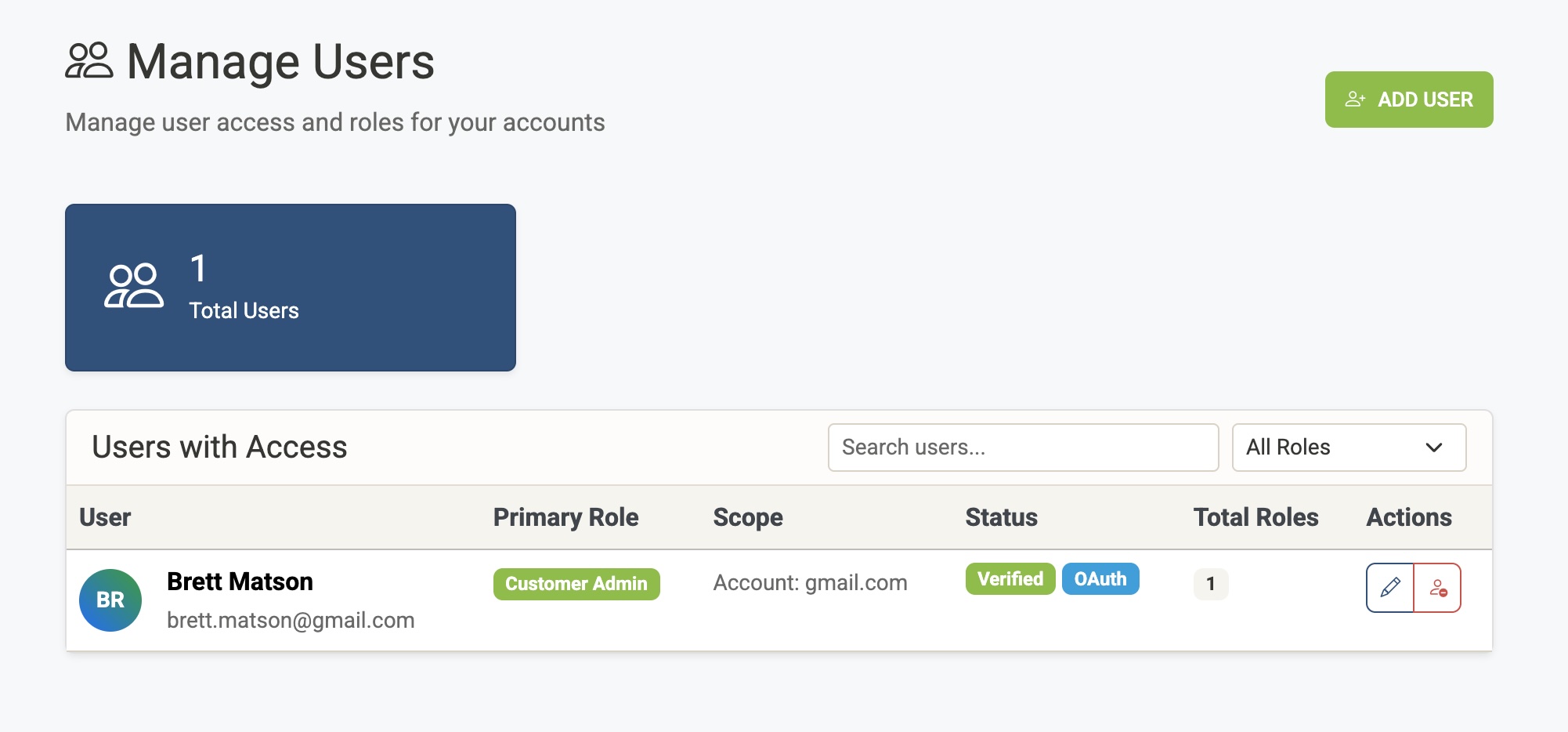
User List
Each row in the table represents a user. The columns are:
| Column | Description |
|---|---|
| User | The user's name and email address. |
| Primary Role | The user's highest-level role (see Roles below). |
| Scope | The account, partner, or specific services the role applies to. |
| Account | The account ID the user belongs to. |
| Auth Method | How the user authenticates — OAuth (Google or Microsoft) or Password. An Unverified badge means the user has not yet completed email verification. |
| Roles | The total number of role assignments for this user. A user can have roles scoped to multiple services. |
| Last Login | The date the user last signed in, or Never if they have not yet logged in. |
| Actions | Edit or delete the user. Users marked Protected (Super Users) cannot be edited or deleted from this screen. If you are not an Owner, every row shows View only. |
Roles
Airgentic uses role-based access control. Each user has a primary role that determines what they can see and do:
| Role | Access |
|---|---|
| Super User | Global system access across all accounts and partners. Managed at database level only. |
| Partner Admin | Full access to all accounts within their partner organisation. Cannot change users' roles or access unless they are also an Owner. |
| Owner | A Customer Admin or Partner Admin who can also add and remove users and change their roles and service access. A partner's Owners can manage users in the partner account and in every customer account under it. |
| Customer Admin | Full access to their account — can configure services and view all data. Cannot change users' roles or access, including their own, unless they are also an Owner. |
| Agent | Live-support access: Human Handoff and Insights. Can block a visitor, but cannot lift a block. Cannot change service modes, hours, auto-assign, wait-time thresholds, saved replies, or other configuration. Lands on Human Handoff after sign-in. |
| Conversation Analyst | Read-only access to services and their reports, Insights and conversation analytics. Cannot make configuration changes. (Previously called Analyst.) |
| Viewer | Everything a Conversation Analyst sees, plus a view-only look at each service's configuration: settings, design, search, agents, prompts and their version history, functions, data sources and crawl logs, privacy, security, and the launch checklist. Cannot save, delete, start a crawl, or use the Aero Assistant. API keys and other secrets are masked. Does not see Human Handoff. |
| Visibility Analyst | The AI Visibility Monitor and the AI Visibility Optimiser only. Can run scans and page analyses, edit prompts and competitors, and export reports, all using the account's credits. Does not see the account's services, Insights, conversations, Human Handoff, or account settings. Lands on the AI Visibility Monitor after sign-in. |
Account-level vs Service-level Access
For Customer Admin, Agent, Conversation Analyst, and Viewer roles, access can be scoped in two ways:
- All services — The user has access to every service in the account. This is the default.
- Specific services — The user only has access to the services you explicitly select. Useful for restricting contractors or team members to a subset of services.
A Visibility Analyst always covers the whole account, because the visibility tools work across the account rather than per service. Give marketing or content staff this role when they should improve AI visibility without seeing conversations.
Owners
An Owner is an Admin with access to all services who also controls who can use the account. Only Owners can add users, remove them, or change whether someone is an Admin, Agent, Conversation Analyst, Viewer or Visibility Analyst and which services they can reach. Other Admins cannot change anyone's access, including their own.
Partner accounts have Owners too. A partner's Owners are Partner Admins, and they can manage users in the partner account and in every customer account under the partner. Each customer account keeps its own Owners as well.
- The person who signs up for a trial, or the admin Airgentic sets up with a new account, starts as the Owner.
- An Owner can make other Admins Owners by ticking Owner in the Edit User dialog. Owners have equal powers and can manage each other.
- Every account and partner needs at least one Owner. To step down, first make someone else an Owner.
- If your account has no Owner, contact Airgentic support to nominate one.
Editing a User
Click the pencil icon to open the Edit User dialog. You can change:
- Role — Select a new role from the dropdown. The change takes effect immediately; the user may need to log out and back in for all changes to apply.
- Service Access — For Customer Admin, Agent, Conversation Analyst, and Viewer roles, choose between access to all services or specific services only. If you select specific services, a checklist of the account's services appears.
- Owner — For Admins with access to all services, tick this to let them manage users too. Untick it to remove Owner rights; this is refused if they are the account's last Owner.
Give live-support staff Agent, not Customer Admin, unless they also need to change configuration. Give reviewers, auditors or stakeholders who need to see how a service is set up, but should not change it, Viewer. See Human Handoff and Desk settings.
Removing a User
Click the person-minus icon to permanently remove a user. You will be asked to confirm. Removing a user deletes their access — if they have no remaining roles after removal, their account is deleted entirely.
Searching and Filtering
(Available to Super Users on the Global User Management screen)
Use the search box to filter by email address or name. Use the dropdowns to filter by role or by account. Click the search button to apply filters, or the refresh icon to clear them.
Summary Counts
(Available to Super Users on the Global User Management screen)
Four cards at the top of the screen show the total number of users in each role category across the entire system: Super Users, Partner Admins, Customer Admins, and Conversation Analysts.
Exporting Users
Click Export to download the current user list as a CSV file. The export includes each user's email, name, role, access scope, account, auth method, active/verified status, last login date, and registration date. The export is scoped to the accounts you can manage — Super Users receive a full system-wide export.