Help
The agent configuration screen opens when you click a row or the gear icon on the Configure Agents screen. Most fields are disabled for the Frontline agent.
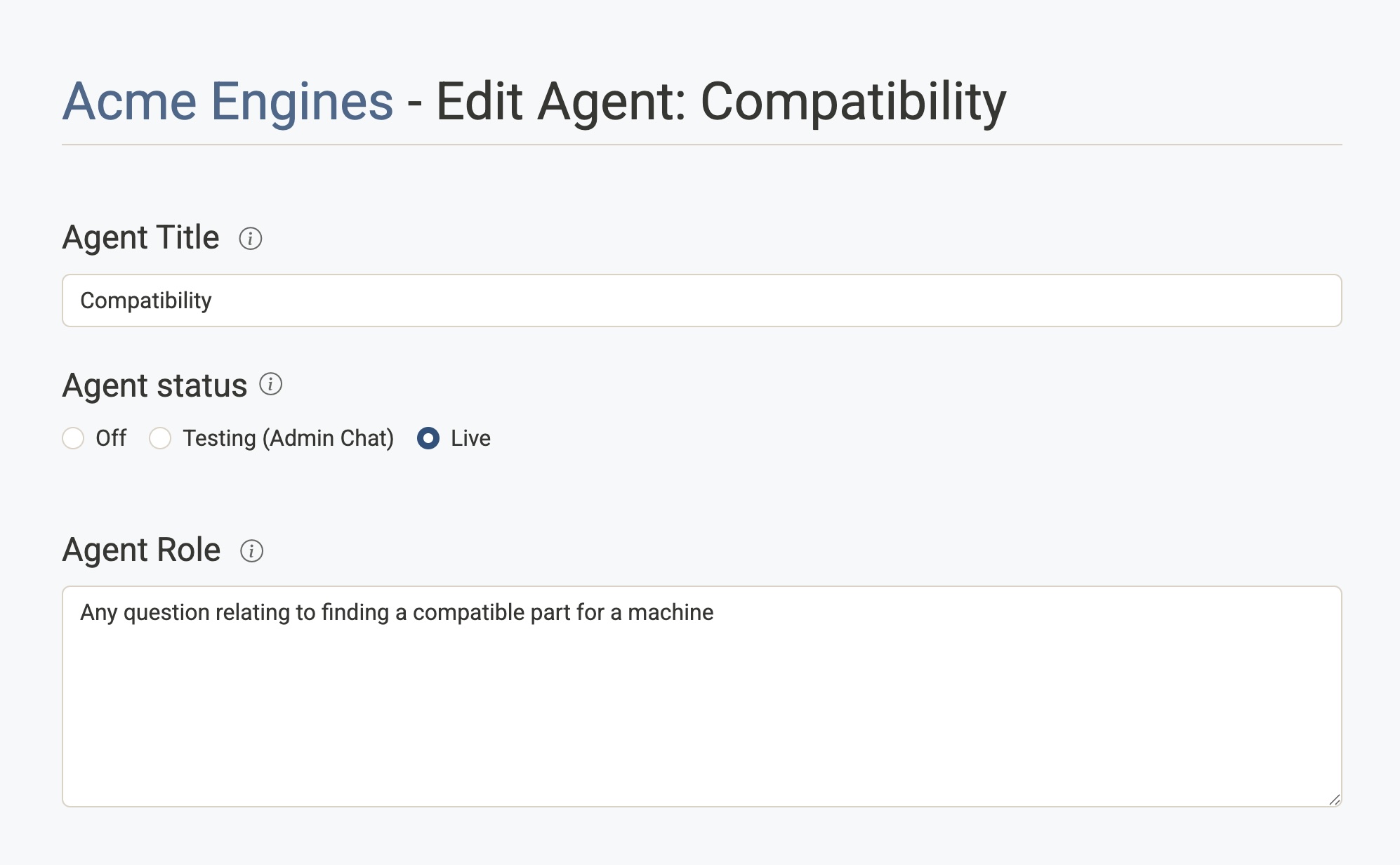
Agent Title
The display name for this agent in the admin console. This is for your reference only and does not affect the agent's behaviour.
Agent Status
Controls who can interact with this agent.
| Status | Description |
|---|---|
| Off | The agent is disabled and will not be used. |
| Testing (Admin Chat) | The agent is active in Admin Chat only. Use this to test behaviour before going live. |
| Live | The agent is active for all users. |
The recommended workflow is to set status to Testing first, verify behaviour in Admin Chat, then switch to Live. The Frontline agent is always live and its status cannot be changed.
Agent Role
A plain-language description of the types of questions this agent handles. The Frontline agent reads this description when deciding whether to delegate an incoming question to this specialist.
Write a clear, concise description of the agent's domain — for example: "Handles questions about pricing, billing, and payment options."
Initial Prompt
The system prompt file used as the starting point for this agent's conversations. Select from the dropdown, which lists prompt files attached to this agent.
A matching prompt is created (and selected here) when you add an agent. Create additional prompts or edit the text on the Edit Prompts screen.
Agent Prompts
The Agent Prompts section lets you attach one or more prompt files to this agent and configure which functions each prompt can call.
- Click Add Prompt (dropdown) to attach an additional prompt file.
- Expand a prompt card to see its available Functions — tick the ones this agent should be able to use (e.g. web search, product lookup).
- Checked functions are sorted to the top of the list for convenience.
- Click Edit on a prompt card to jump directly to the prompt editor.
- Click Remove to detach the prompt from this agent (the prompt file itself is not deleted).
Force Call First
When you select a function, a Force call first checkbox appears beneath it. Enabling this option forces the assistant to call a function on its first turn before generating a response.
| Setting | Behaviour |
|---|---|
| Unchecked (default) | The assistant decides automatically whether to call the function based on the user's question. This is the standard behaviour. |
| Checked on one function | The assistant must call that function on the first turn. After the function returns its output, automatic tool selection resumes. |
| Checked on several functions | The assistant must call one of the ticked functions on the first turn (it chooses which). Other attached functions are hidden until that first call returns, then automatic tool selection resumes. |
When to use it: Enable this for search or retrieval functions when you want every conversation to start with a knowledge base lookup, rather than relying on the assistant to decide. This ensures the assistant always has relevant context before answering. If the agent has more than one retrieval function (for example search and search_catalog), tick Force call first on each of them so the assistant must look something up first but can still choose the right tool.
Loop prevention: Once the function has been called and its output is in the conversation, the forcing behaviour stops automatically. This prevents the assistant from repeatedly calling the same function in a loop.
AirScript Variables
AirScript variables are configuration values that your agent's functions can read and write at runtime. They're used to store settings like API keys, email addresses, and other values that functions need to operate.
What Are They For?
When a function needs external configuration — such as an API endpoint, authentication token, or email address — it reads these values using air.get_config('variable_name'). This keeps sensitive data out of your function code and lets you configure different values for different agents.
Regular vs Secret Variables
| Type | Description |
|---|---|
| Regular | Stored in plain text in the agent's configuration file. Visible in the admin console. Use for non-sensitive values like email subjects, lead source labels, or template text. |
| Secret | Masked in the admin console (shown as ••••••••) and stored in an encrypted vault. Use for API keys, tokens, passwords, and other sensitive credentials. |
Automatic Variable Creation
When you add a function to an agent (by ticking the checkbox in the Agent Prompts section), any variables that function requires are automatically created for you. The system reads the function's code, extracts all air.get_config() calls, and creates corresponding variables.
- Variables with names containing words like
token,key,password, orsecretare automatically marked as secret. - Variables with default values in the code are pre-filled with those defaults.
- After saving, you'll see a notification telling you how many variables were created — scroll down to the AirScript Variables section to fill in their values.
Managing Variables Manually
You can also create, edit, and delete variables manually:
- Add Variable — Click the + Add Variable button, enter a name (alphanumerics and underscores only), a value, and tick Secret if the value should be encrypted.
- Edit — Click the pencil icon next to a variable to change its value or secret status.
- Delete — Click the trash icon to remove a variable.
Changes to variables are saved when you click Save Agent Configuration.
Using Variables in Functions
In your AirScript code, read variables with:
api_key = air.get_config("api_key")
email_to = air.get_config("notification_email", "default@example.com")
You can also set variables at runtime (values persist for the conversation):
air.set_config("call_count", current_count + 1)
See AirScript Functions for full details on get_config and set_config.
Search Settings
Title Boost
A score multiplier applied to search results where the query matches the page title. A value of 3 means title matches are ranked 3× higher than body matches. Leave at 1 for no boost.
Search URL Prefixes
Restrict this agent's search results to pages under specific URL prefixes. Only content from URLs starting with one of these prefixes will be returned to this agent.
- Leave empty to allow the agent to search across all indexed content.
- Add one prefix per line, e.g.
https://www.example.com/products/.